How to Privately Share a Photo Album With Family on iPhone
You finished the pages. The hard part is the handoff.
Most share buttons open a different product problem: a cloud link that never dies, a group chat that buries the photos, a social app that wants an audience. What you wanted was quieter. A few people open the same magazine-style pages on their phones, react, leave a short note, and stop.
In Pressbook that path is private share. Long-press the gallery card, choose Share memory. You land on Share, not a third-party uploader. This post walks the real menus, what guests can do, and how that differs from dumping the weekend into Photos or a feed.


What you are sharing
Private share is for a finished project: album, collage, or carousel. Guests open full-screen pages (or panels), not a folder of originals from your library.
You still design on-device. Curation, layout, the fullness slider, and export stay local. When you prepare a share, Pressbook renders the pages and moves that shared package into iCloud for the invitees. That is Apple’s share path (CKShare), not a Pressbook backend that hosts a public gallery of your roll.
Honest boundary: create/edit without a Pressbook account; optional private share uses iCloud between people you add.
Step by step (real labels)
1. Finish the piece
Build an album worth reading, or a carousel/collage worth swiping. Open it once yourself in the magazine reader so you know what guests will see. Density, chapters, and takes are your design tools before anyone else is invited.
2. Open Share from the card
On the home gallery, long-press the project card. Choose Share memory. The sheet title is Share.
3. Intro: what sharing is
The intro states the product:
- Nothing to set up: pages are prepared on your device, automatically.
- Invite only through iCloud: only people you have added can open it; an invite-only link does not work for strangers.
- Ready right away if there is no unlock date, or One reveal, shared if you seal so everyone waits for the same date.
Optional row: Add an unlock date: “Seal it so everyone opens it together.” That is the Memory Capsule fuse on the same flow (full capsule guide: digital time capsule).
CTA: Prepare and share. Footnote: about a minute, all automatic.
4. Prepare
You see Preparing to share while Pressbook renders pages and moves them into iCloud. Status lines include rendering and uploading page N of M. Nothing else for you to configure mid-flight.
5. Invite people
After prepare, Ready to share (or Sealed and shared if you sealed). Primary action: Add people.
Add people asks for Email or phone: the one linked to their Apple Account. Hint in the sheet: they need iCloud to open the capsule. You can Choose from Contacts. Then send with Share link (Messages, WhatsApp, email…) or related invite actions. There is also Send a download link for anyone who does not have Pressbook yet.
6. Manage later
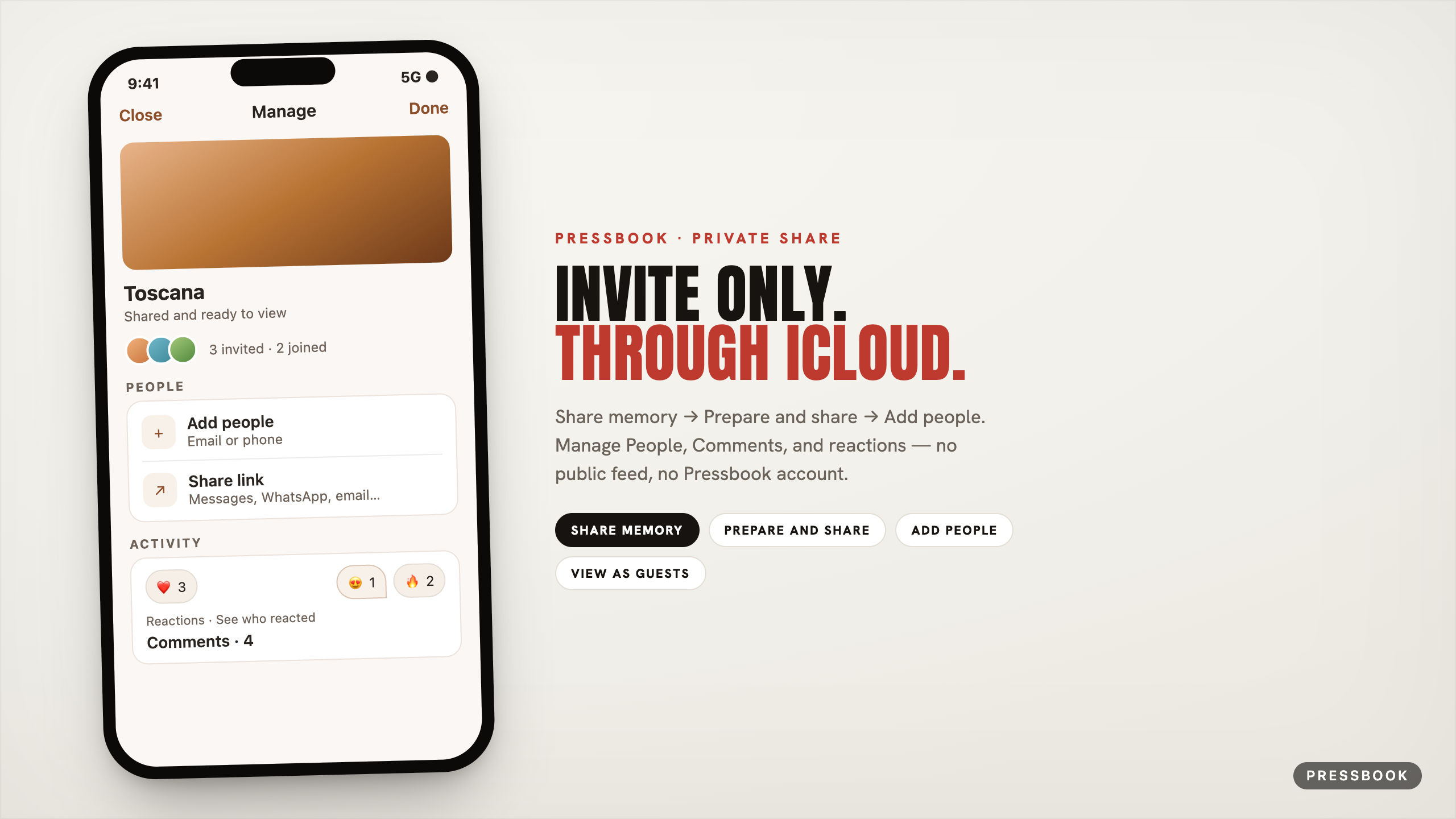
Reopen share from the card menu to Manage (title Manage sharing). Sections match the product:
| Control | What it does |
|---|---|
| People | Invite or remove; statuses like Invited, Joined, Owner |
| Add people | Same email/phone path |
| Share link | Pressbook link that walks them through opening it |
| Link access | Invite only (default intent) vs Anyone with the link (extra confirm) |
| Activity → Reactions | Counts; See who reacted |
| Activity → Comments | Opens Comments |
| View as guests | What invited people see |
| Stop sharing | Confirm: people lose access; the project stays on your device |
| Send update | If the local project changed since you shared |
Reactions and comments (what family actually does)
Guests open the shared pages in Pressbook. On the viewing surface:
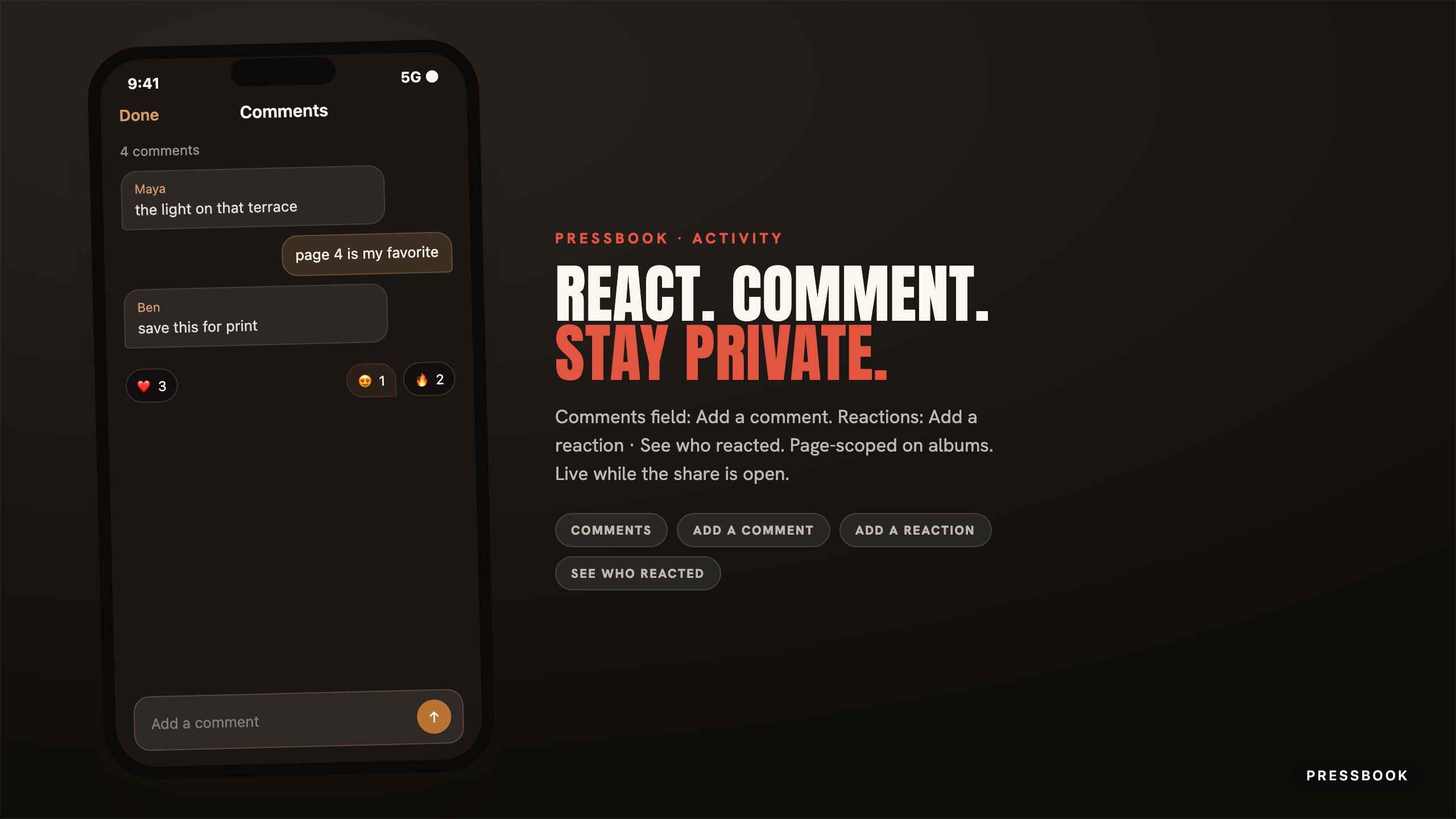
- Add a reaction: fixed emoji set; pick again to clear.
- Long-press a chip or open See who reacted for who chose what.
- On multi-page albums, reactions can be page-scoped so page 4 is not the same heart as page 1.
- Comments: nav title Comments, field Add a comment, chat-style bubbles (yours trail one way, theirs the other).
- Counts update while the share is open; owners can moderate, everyone can delete their own.
Vs the usual alternatives
| Private share in Pressbook | Group chat dump | Shared cloud album link | |
|---|---|---|---|
| Object | Finished pages | Loose photos | Cloud folder |
| Who | People you add | Whole chat | Anyone with the link (often) |
| Feedback | Reactions + Comments | Scattered replies | Product-specific |
| Design | Your layout, reader, density | None | Their grid |
If the job is “parents open the book and leave a note on page 4,” private share fits. If the job is “sync raw files for editing,” use Files or Photos, not this.
Design the album before you invite
Share does not fix a rushed layout. Before Prepare and share:
- Let the story engine chapter by time and place (how the roll is read).
- Use the fullness slider so density matches the gift (airy for memorials, packed for trips). Takes keep prior versions.
- Prefer faces kept, not cropped; the engine is built for that.
- One strong piece beats three half-finished cards in the invite.
Privacy, short
- No Pressbook account.
- Prepare renders and puts the shared package in iCloud for invitees; it is not a Pressbook public CDN of your library.
- Stop sharing revokes access; your local project remains.
- Analytics stay opt-in and off by default.
Try it
Finish one weekend album. Card menu → Share memory → Prepare and share → Add people. Open Manage later and leave the first reaction yourself.
Start in Pressbook, free on the App Store.
Next: digital time capsule · gift a digital photo book · share wedding photos with family.