Make a Magazine-Style Photo Album on iPhone in Seconds
Hand a week of trip photos to Pressbook and you get a finished album back before you have decided on a caption. Cover, hero pages, grids, a closing spread. No upload, no account, no progress bar spinning against a server somewhere. The whole thing is assembled on the iPhone or iPad already in your hand.
This post walks through what happens between tapping New Album and holding a print-ready PDF, and why each step runs locally. An album is the long-form tool. For a single shareable image there is Quick Collage, and for a swipeable set there is an Instagram carousel, both built from the same library.

Start with a size
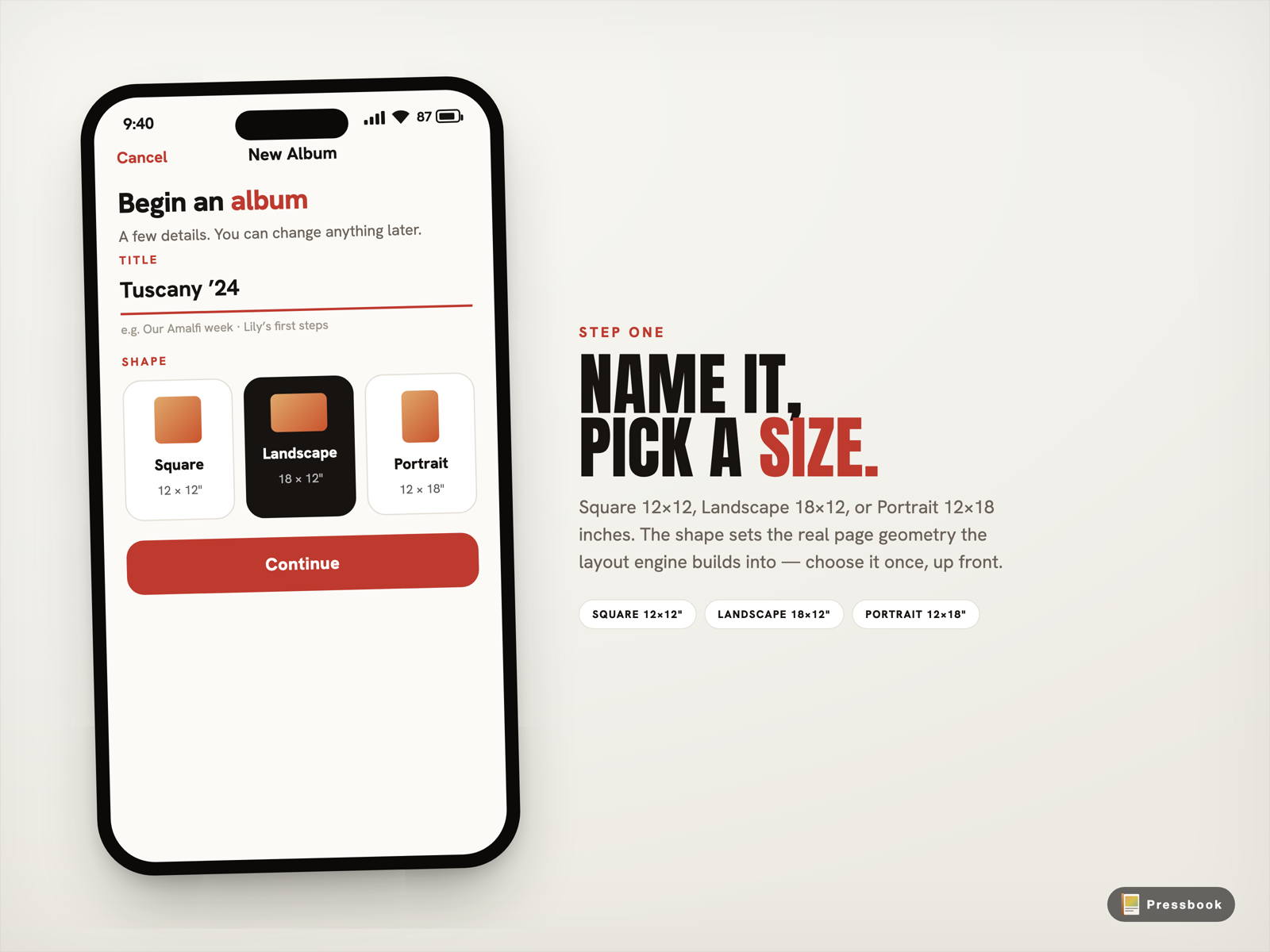
Before any photos, you name the album and pick a shape. There are three, and they map to how the album gets printed:
- Square, 12 by 12 inches, the format every consumer print lab supports.
- Landscape, 18 by 12 inches, the wide spread that suits scenery and travel.
- Portrait, 12 by 18 inches, for vertical subjects like people and architecture.
The size is a real constraint, not a label. It sets the page geometry the layout engine designs into, so a Landscape album gets wide hero pages and a Portrait album gets tall ones. Pick it first because it changes every layout decision that follows.
What the AI actually looks at
The part that feels like magic is the curation, and it is the least magical once you see the inputs. Apple's Vision framework runs on each photo, on the device, and Pressbook reads a set of concrete signals off the result. Every photo gets an aesthetic score for composition, light and color, a quality score for sharpness and exposure, a face count and a face-capture-quality reading, a mood label (joyful, romantic, dramatic, intimate and a few others), scene labels, and a dominant color used later for theme matching.
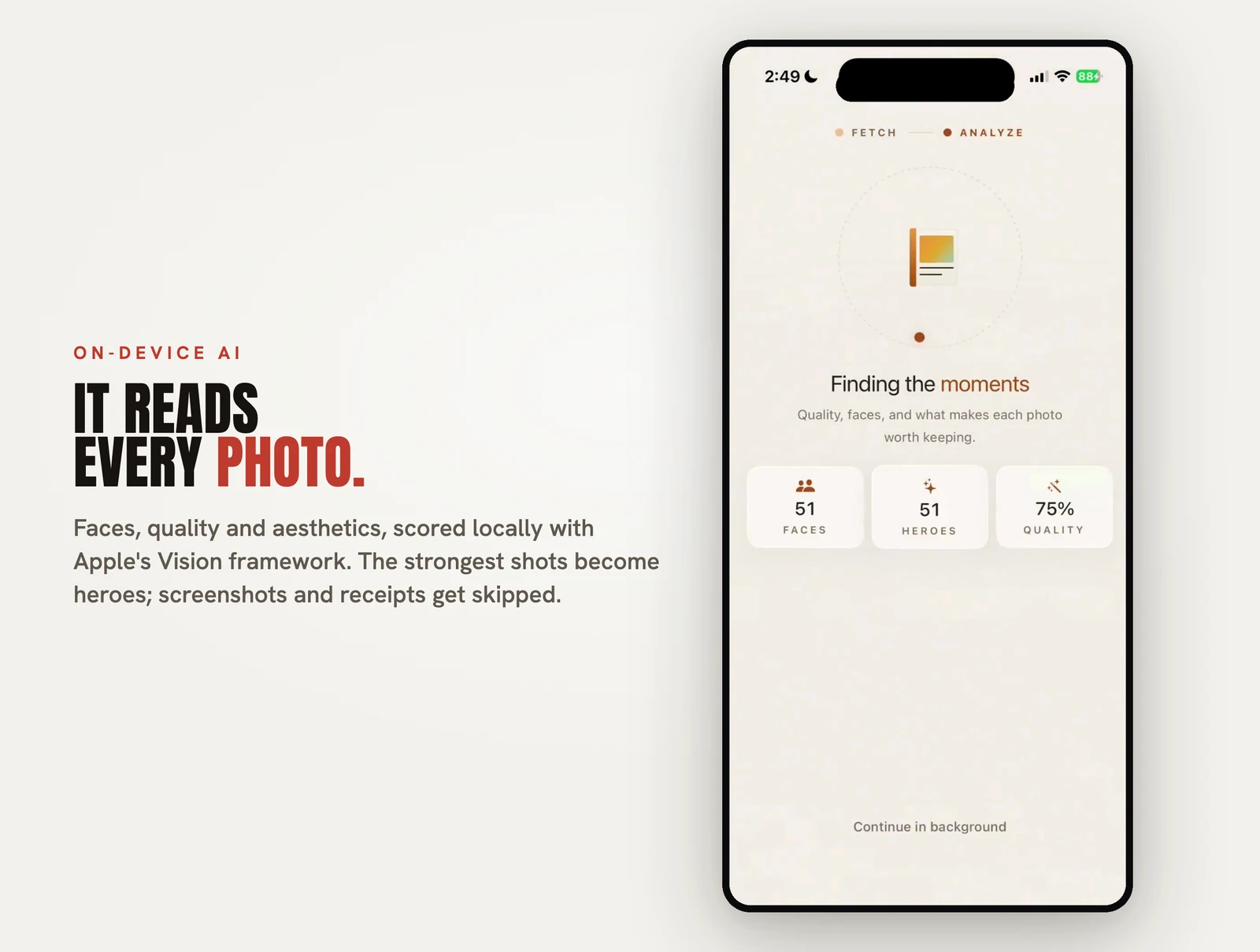
The scoring is fast because it is narrow. Each signal is a number the layout engine can sort on, not a verdict. Photos then get grouped by when they were taken, so a morning at the market and an evening walk become separate beats in the album instead of one long blur, and the engine paces the pages around those clusters.
Two of those signals do quiet, useful work. Screenshots, receipts and whiteboard photos are flagged as utility images and skipped, so a messy camera roll does not pollute the album. And a hero pass ranks the strongest shots so they land on full-page spreads instead of being buried in a grid.
You are not handing this to a black box. After it runs, Pressbook shows you a review: how many photos it kept, and what it set aside and why.
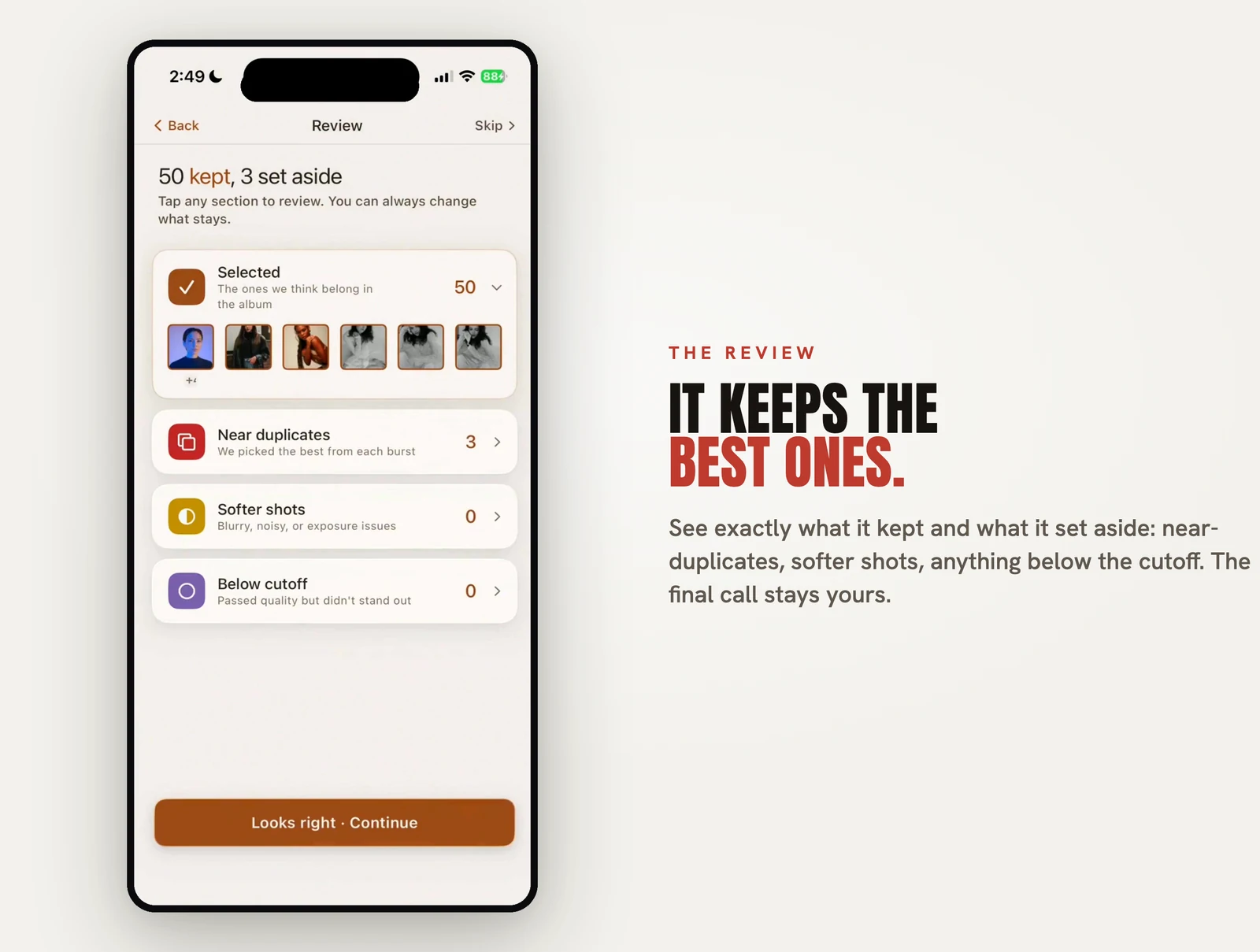
Near-duplicates from a burst get thinned to the best frame. Softer or noisier shots get grouped so you can scan them. Anything that scored below the cutoff is listed, not silently deleted. If the curator ranked a photo you love too low, say a group shot where someone blinked, you drag it back in. The ranking decides how prominently a photo is placed, not whether it survives.
Laid out by hand, not by a grid generator
Once the photos are chosen, they get arranged. Pressbook runs a layout engine that picks page types in a deliberate rhythm: a solo hero page, then a pair, then a grid, then a quote page, varied so the album does not fall into a repeating pattern. The page templates were drawn by designers rather than generated, which is why the spreads have the pacing of a printed photobook instead of the evenness of a contact sheet.
There are three personalities to design into, and they change the whole feel. Gallery packs photos tightly into editorial grids. Editorial alternates full-page heroes with multi-photo spreads and the occasional pull-quote. Collage mixes sizes and orientations for energy. A separate tone control, Light, Warm or Dark, sets the color grade across every page without touching the layout, so switching from Warm to Light shifts the mood without rearranging anything.
If the personality does not feel right once you see it, you can switch it after the album generates. The layout rebuilds from scratch with different templates while your photo selection stays put. The full step-by-step, including how personality and tone interact, is in Creating Your First Pressbook Album.
Captions, if you want them
On iOS 26 and later, Pressbook can draft captions for you using Apple's on-device Foundation Models. It reads the scene labels and mood for a photo and writes a short line, under fifteen words, in your language. You edit it or replace it. When that model is not available, the app falls back to a set of mood-based lines instead. Either way, the text is written on the device and the photo never leaves it to get a caption. The same on-device model powers the curved text and caption tools in the page editor.
Export at the right resolution, or order a print
The album exports at three quality tiers, and the right one depends on where it is going. Messaging is a 150 DPI PDF, small enough to send. Everyday is 300 DPI, standard photobook quality that most print services accept. Print Lab is a 600 DPI press-ready PDF for professional labs.
Resolution has a real cost in file size. A 300 DPI export of a 32-page album runs around 80 MB; at 600 DPI the same album is closer to 320 MB, so check your free space before a Print Lab export. Beyond the PDF, you can export individual pages as images, hand off the editable project file to someone else, AirDrop the PDF to a Mac, or order a printed copy. Every one of those paths works offline.
Why on-device matters here
A photo album is about as personal as a folder of files gets. The conventional version of this category uploads your camera roll for curation, layout and printing, which means your photos sit on someone else's servers to come back as a book. Pressbook does the curation, the layout, the captions and the PDF on your phone. The photos never leave. There is no cloud in the path to trust, because there is no cloud in the path. We wrote more about why we build this way in Why we built SideSwipe Labs.
Try it on a trip you have been meaning to do something with
Pick 80 photos from a recent trip and run them through. A trip-sized set lays out in a few seconds; a couple hundred photos take a minute or two. The slow part is choosing the photos, and you only do that once.
Start an album in Pressbook, free on the App Store, and begin with a week you would otherwise leave sitting in your camera roll.