How to Make a Photo Collage on iPhone in Seconds
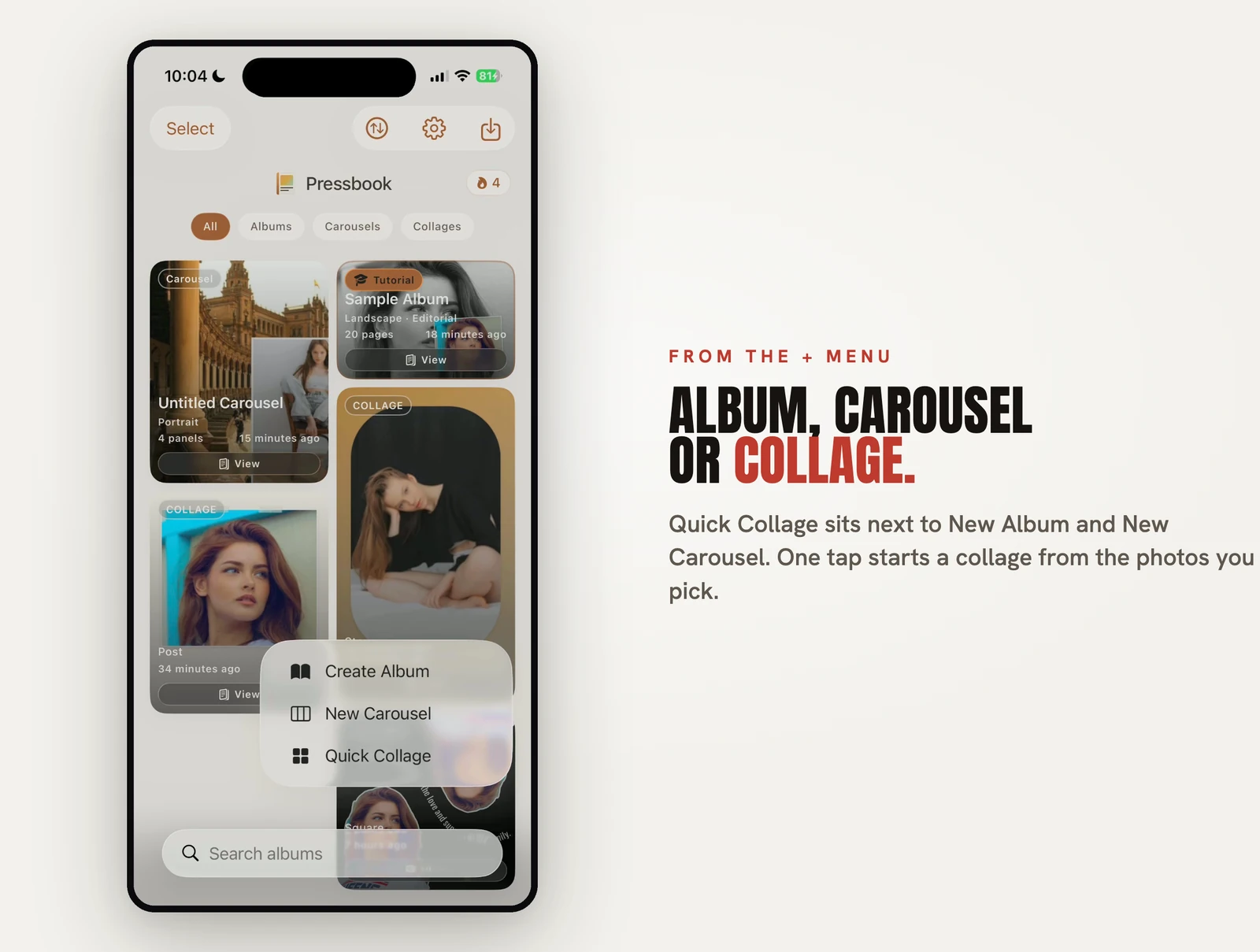
From the + menu, tap Quick Collage, choose a shape, and drop in six photos. You have a finished collage before the keyboard would have finished autocorrecting a caption. No template hunting, no dragging photos into slots one at a time, no account.
Quick Collage is the fast lane in Pressbook: a few taps to a single shareable image, separate from the longer album flow. The whole thing takes about a minute.
Four shapes, built for where it is going
The first choice is the format, and there are four. Each one is a real aspect ratio sized for a destination, not a generic frame:
- Square, 1 by 1, 2160 by 2160 pixels. The classic feed thumbnail.
- Story, 9 by 16, 2160 by 3840 pixels. Tall, for stories and reels covers.
- Post, 4 by 5, 2160 by 2700 pixels. The taller feed post that takes up more screen.
- Wide, 16 by 9, 3840 by 2160 pixels. Landscape, for a banner or a print.
All four render at 300 DPI, so the same collage that looks right on a phone screen also holds up if you print it. Picking the format first matters: a layout that works as a square rarely works untouched as a tall story, so Pressbook keeps the arrangements format-specific rather than stretching one grid to fit every shape.
It fills every frame
After the shape, you pick how many photos go in, anywhere from one up to nine or more, and drop them in. Pressbook matches a layout to your photo count and format, then fills every frame so there is no empty cell to tidy up. The arrangements come from a bundled library, so for a given count the picker has hundreds to draw from. None of that selection touches the network; the templates ship inside the app.
The photo count is the lever that changes the character of the result. Two photos give you a clean split. Four or five start to feel like a magazine contact sheet. Nine fills the frame edge to edge with a mosaic. Change the count and the layout options change with it, because each template is built for a specific number of slots rather than scaling one grid up and down.
Do not like it? Shuffle
The arrangement you get first is rarely the only good one. Tap Shuffle and Pressbook reflows the same photos into a different layout, same shapes, new composition. It is the fastest way to audition options: keep tapping until one clicks. Nothing about your photo selection changes, only the grid they sit in.
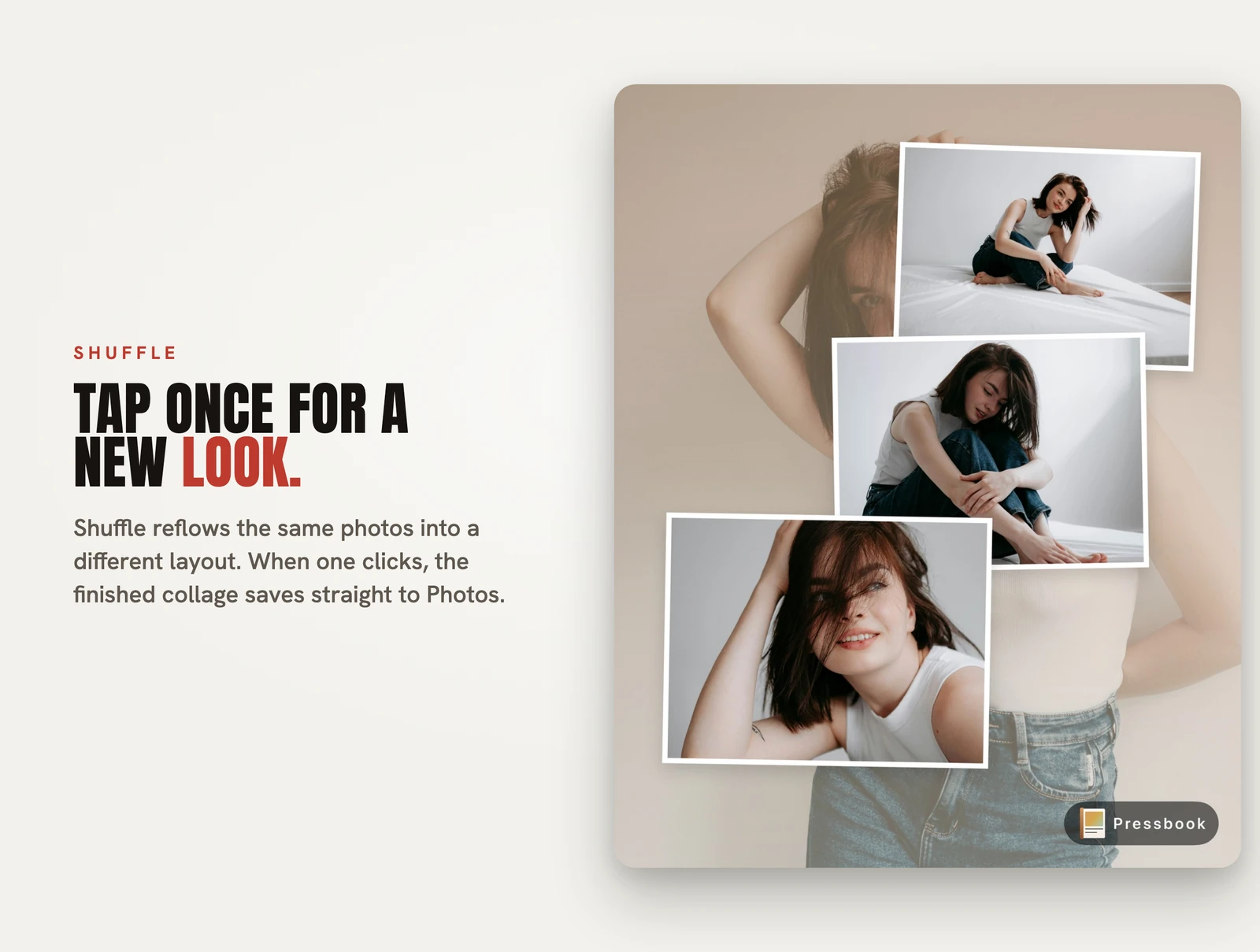
When a collage is right, you save it to Photos or share it directly. Like everything else in the app, it exports at the tier you choose, from a small 150 DPI image for messaging up to 600 DPI if you are printing it.
Everything stays on the phone
There is no step in Quick Collage where your photos leave the device. The layouts are bundled, the rendering is local, and the export writes a file to your phone. That is the same architecture behind the rest of Pressbook, and the reason we explain it the way we do in Why we built SideSwipe Labs.
When to reach for a collage instead of an album
A collage is one image. An album is a sequence of pages. If you want a single post that fits several shots from the same moment, Quick Collage is the tool. If you want to tell a longer story across spreads, start a full album instead. And if the goal is a set of slides someone swipes through on Instagram, that is a carousel, which is its own feature.
Try it
Open Pressbook, tap +, choose Quick Collage, and drop in five or six photos from the same afternoon. Shuffle until it looks right, then save.
Start a collage in Pressbook, free on the App Store, and make the first one in under a minute.