300 DPI vs 600 DPI Photo Books: What Print Labs Actually Want
You're ready to print the album. The photos look right, the spreads feel strong. Then the lab asks: "300 DPI or higher?"
Most people reach for 300 DPI because every consumer service calls it the standard. It is safe and it works for the majority of books. But a lot of professional photographers and higher-end labs quietly prefer or request 600 DPI when the result really counts.
The difference is measurable. With Pressbook you can deliver either one from the identical project, with no uploads and no quality loss along the way. You stay in control.
What the numbers really mean for your printed pages
DPI here refers to the pixels per inch embedded in the PDF pages at the final print size. It determines how much image data the lab receives for each physical inch of paper.
At 300 DPI you get the long-standing industry standard. For books viewed at normal distance, it has delivered crisp results for decades.
At 600 DPI the PDF carries four times the pixel information for the same physical page size. The lab or printer has more data available for rendering fine detail in skin, fabric, hair, small text, and gradients. This matters more for large pages or close viewing.
Bumping the DPI never fixes a soft source photo. It only gives the printer everything you actually captured. Sharp originals at 300 already look excellent. 600 simply gives extra headroom.
The difference shows up most in fine details: individual hair strands, fabric weave, skin texture, sharp small text, and subtle gradients. On a typical coffee table book viewed at normal distance, 300 DPI holds up extremely well for most people. At 600 DPI you give the printer more data to work with, which pays off on larger pages, when someone leans in close, or if you ever crop or enlarge later.
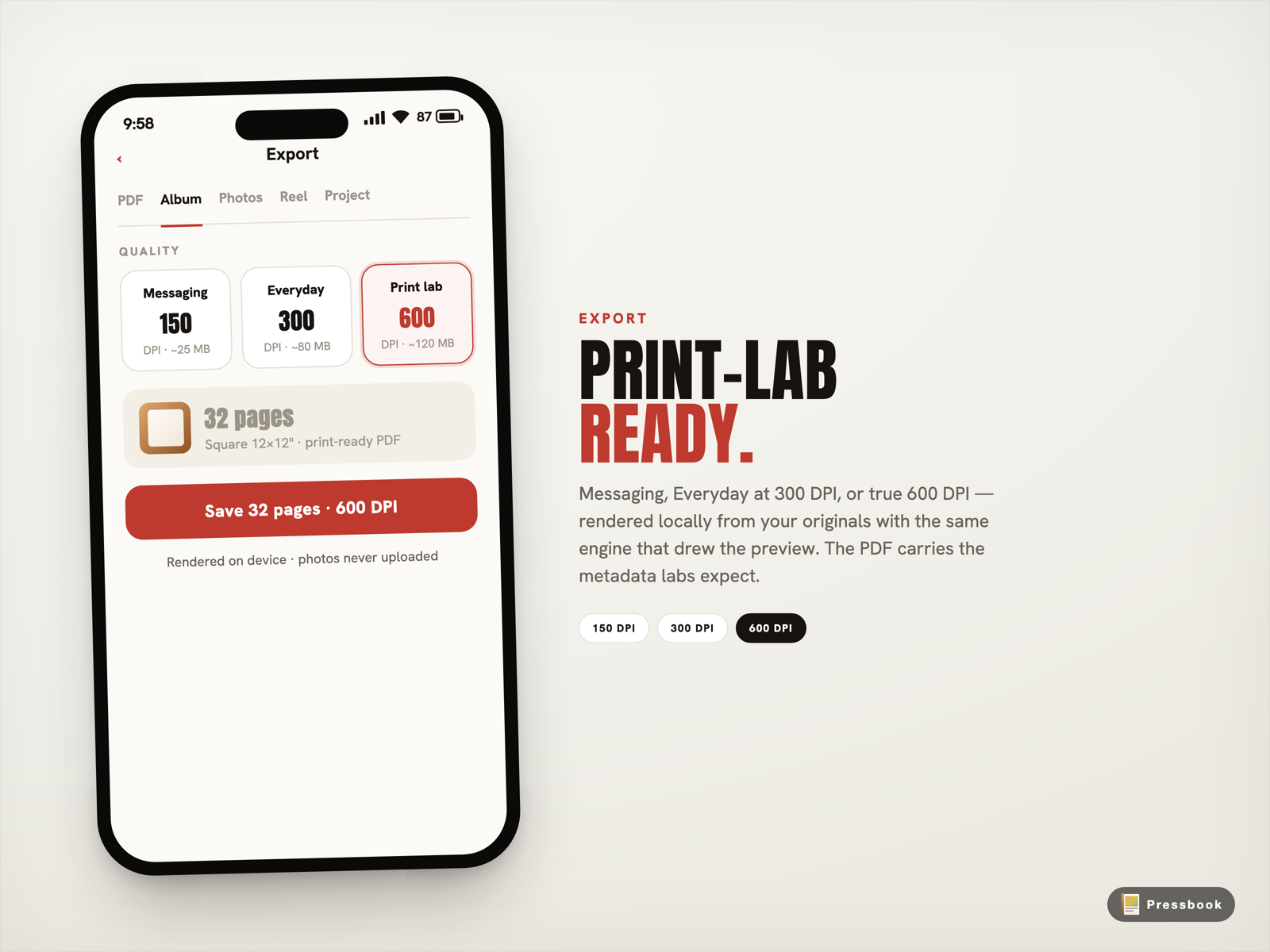
Here is the actual export interface that gives you the choice cleanly:
300 DPI vs 600 DPI at a glance
| Factor | Everyday (300 DPI) | Print Lab (600 DPI) |
|---|---|---|
| Pixels per page (square 12×12") | 3600 × 3600 | 7200 × 7200 (4× data) |
| Typical 32-page square file | 70-90 MB | 100-150 MB (not full 4× due to source limits) |
| Standard for | Most consumer labs and normal viewing distance | Pro labs, close inspection, large formats, archives |
| File handling | Smaller, faster exports and uploads | Larger but still practical for serious work |
| Lab acceptance | Industry standard everywhere | Preferred or required by many high-end places |
When to choose each
Use Everyday (300 DPI) for most family albums, client previews, standard coffee-table books, or any lab that has never asked for more. The vast majority of printed photo books look excellent at this resolution when the source photos are sharp and the pages are viewed at normal distance.
Reach for Print Lab (600 DPI) when:
- The lab says "print-ready," "600 DPI," or "higher resolution"
- The book is large format, layflat, or will be looked at up close (weddings, portraits, product albums)
- Fine textures, skin, small overlaid text, or delicate details carry emotional weight
- You want maximum future-proofing for reprints or crops years later
Many pro photographers default to the higher tier for any job heading to a good lab. It costs a bit more storage and time but removes the "did I send enough pixels?" worry. Pressbook makes both versions trivial to produce from the same master project.
Real file sizes (what the app actually produces)
The math looks simple at first: square 12×12" at 300 DPI is 3600×3600 pixels per page. At 600 DPI that doubles to 7200×7200, four times the pixels.
In practice file sizes do not jump 4×. The PDF embeds JPEG-compressed photos drawn from your original camera roll images (often around 4000 px on a side) and the renderer applies sensible caps. Pressbook's estimator accounts for real behavior.
For a typical 32-page square album:
- Everyday (300 DPI): around 70-90 MB
- Print Lab (600 DPI): typically 100-150 MB (sometimes a bit higher or lower depending on photo content)
Longer albums and landscape or portrait formats grow from there. A 60-page landscape at 600 DPI can reach a few hundred MB. The app shows the live estimate for your exact project before you start and pre-checks free space. Exports write atomically: full clean PDF or nothing.
Everything renders locally with the same CanvasPagePDFRenderer pipeline used for your live preview, just at the target pixel scale. No uploads, no server recompression.
What labs actually say (and what "print ready" usually means)
Industry consensus from commercial printers, photo book services, and pro labs is clear: 300 DPI is the standard target for photo books.
Most consumer services (Mixbook, Shutterfly, drugstore labs, many local printers) design their workflows around 300 PPI images. They will print a clean 300 DPI PDF without complaint and often downsample anything higher internally anyway.
Higher-end or fine-art printers sometimes explicitly request higher resolution files or "print-ready" at 600 DPI when the book will be examined closely, when pages are large, or for archival work. They can always use the extra data.
A few patterns from working photographers and lab guidelines:
- Send at least what they ask for. If the spec says 300, a proper 300 DPI PDF sized to the final book dimensions is usually perfect.
- Sending 600 is almost always safe. Labs that want lower will resample. The extra pixels give their process more room for sharpening and color work.
- The real gotchas are wrong page dimensions, low-res source photos stretched too big, or missing color profile (RGB is standard).
If you are unsure about a specific lab, export the Everyday version first and send a sample. Then re-export the identical project at Print Lab if they want more. Because the full editable .pressbook file lives on your device, this takes minutes.
How Pressbook actually gives you the choice
You build at the final physical dimensions (Square 12×12", Landscape 18×12", or Portrait 12×18"). The layout engine and editor work in those real-world sizes from the start.
When you export a PDF, the sheet shows three human labels. Pro unlocks the print tiers:
- Messaging (150 DPI): tiny files for texts and quick shares. Never for print.
- Everyday (300 DPI): the industry standard most consumer services expect.
- Print Lab (600 DPI): the higher resolution many pro labs and fine-art printers prefer.
The page dimensions in the PDF are set exactly to the chosen print size at the selected DPI. For a square album that means 3600 px pages at 300 DPI or 7200 px pages at 600 DPI. The PDF metadata reflects the DPI you chose.
Everything uses the same CanvasPagePDFRenderer that draws your on-screen preview, just scaled to the target resolution using your original full-res photos. No approximations. You choose 600, the pages are rendered at 600.
The workflow that actually works in real life
-
Pick your final print size when you create the album. Square, landscape, or portrait. The layouts lock to those physical dimensions.
-
Curate, edit, add text and graphics at full source quality.
-
Export a test at Everyday (300 DPI). Send sample spreads or the full PDF to the lab.
-
If it passes or this is a casual project, done.
-
For anything that matters, re-export the exact same project at Print Lab (600 DPI). Every creative decision stays identical. Only the pixel density changes.
The editable project stays on your phone the whole time. Change a caption or swap a photo and re-export either resolution in minutes. No cloud service to re-process or re-upload to.
The part cloud services still can't match
When a lab receives a 600 DPI PDF from Pressbook, every pixel started on your phone and stayed there until you decided to share the finished file.
No photos were uploaded, resized on a server, re-compressed multiple times, or touched by anyone else's pipeline.
You keep the original .pressbook project forever as your master. Need a reprint in two years? Open it, confirm nothing moved, export again at 600 DPI (or 300). The quality chain is still yours.
That combination of print-grade technical control and complete privacy is rare once you leave your device.
Ready to stop guessing?
Download Pressbook and export the same album at both settings. See the live estimates, watch the on-device render, then send the version the job actually needs.
Start an album in Pressbook, free on the App Store.
For the exact step-by-step on getting a 600 DPI file out of your phone, read the companion guide: How to Print a Photo Book at 600 DPI from Your iPhone.
Want the full no-upload workflow from camera roll to export? Read How to Make a Photo Book on iPhone Without Uploading Photos.
The difference between "it looks fine" and "this is exactly what I captured" is often just one export setting, with the full project still in your hands.