How to Export a 600 DPI Photo Book PDF From iPhone (No Uploads)
You come back from a trip with two hundred photos on your iPhone. The light was good, the moments were real. You want a physical book on the shelf, not another folder on your phone or a soft print from a cloud service.
Most people upload everything to a website, wait for the spinner, and hope the lab gets something close to what they shot. Files get re-compressed on the way. Colors shift. Detail disappears. Then the book arrives and it looks fine from across the room but soft when you actually look.
Pressbook skips that entirely. You design the album on your phone. When it is ready you export one clean PDF at 600 DPI. The photos never leave the device. The render uses the same engine as your live preview, just at full print resolution. The file carries proper DPI metadata so any lab that accepts PDFs can print it without guessing.
Here is the exact process.
Lock the print size before you start
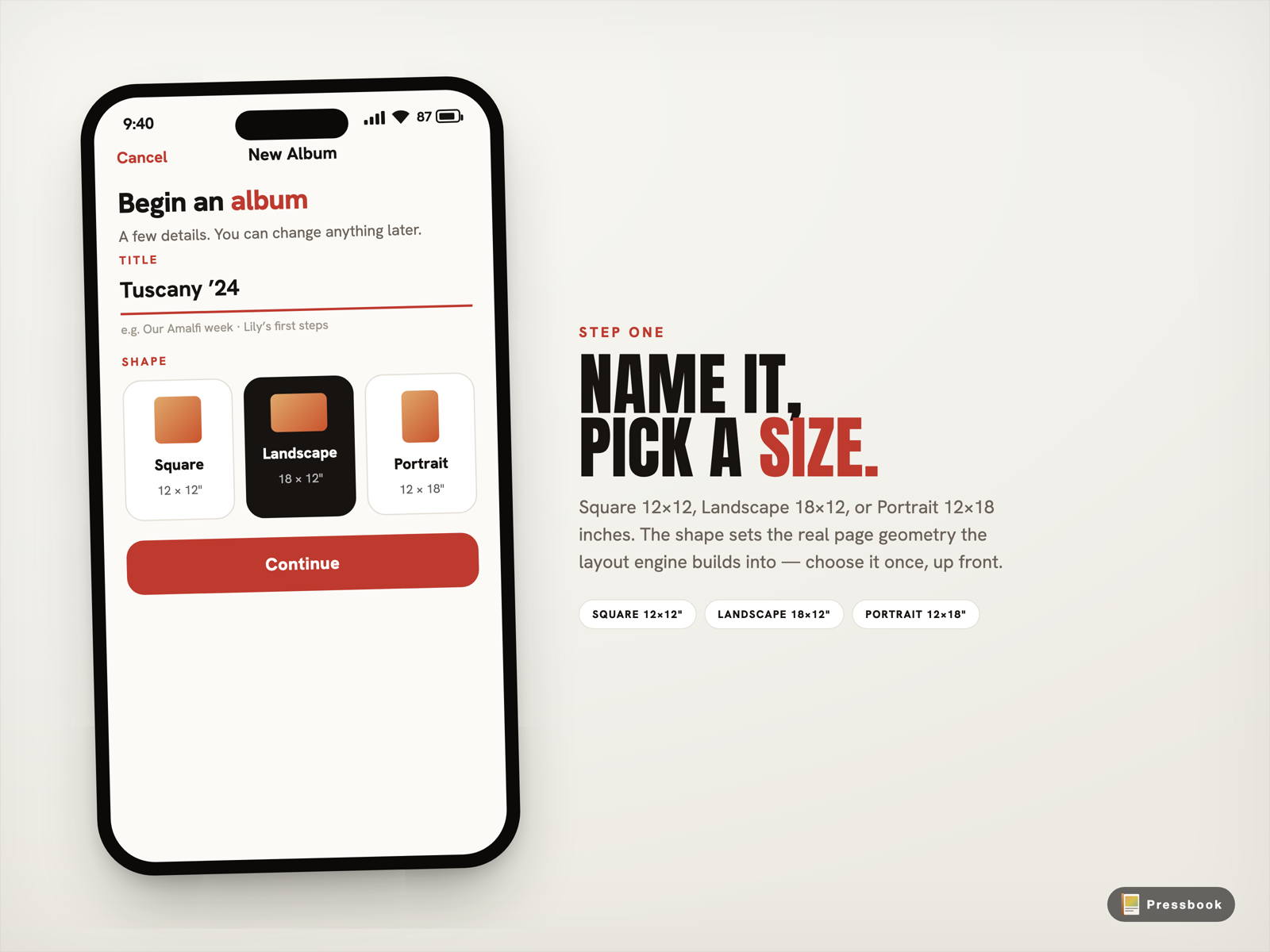
The size you pick at creation sets the exact page dimensions the layout engine uses for every spread. Change it later and you usually start over.
Pressbook supports the three standard sizes labs expect:
- Square (12×12"): 3600×3600 px at 300 DPI base. The everyday classic that looks right on any shelf.
- Landscape (18×12"): 5400×3600 px. Wide spreads for panoramas, groups, or travel sequences.
- Portrait (12×18"): 3600×5400 px. Tall and traditional for vertical stories or classic book feel.
The picker shows live previews in the real aspect ratio. Choose based on the photos you actually have. Everything downstream (templates, spacing, export) builds to these exact physical inches.
The three quality tiers (and why 600 DPI is different for labs)
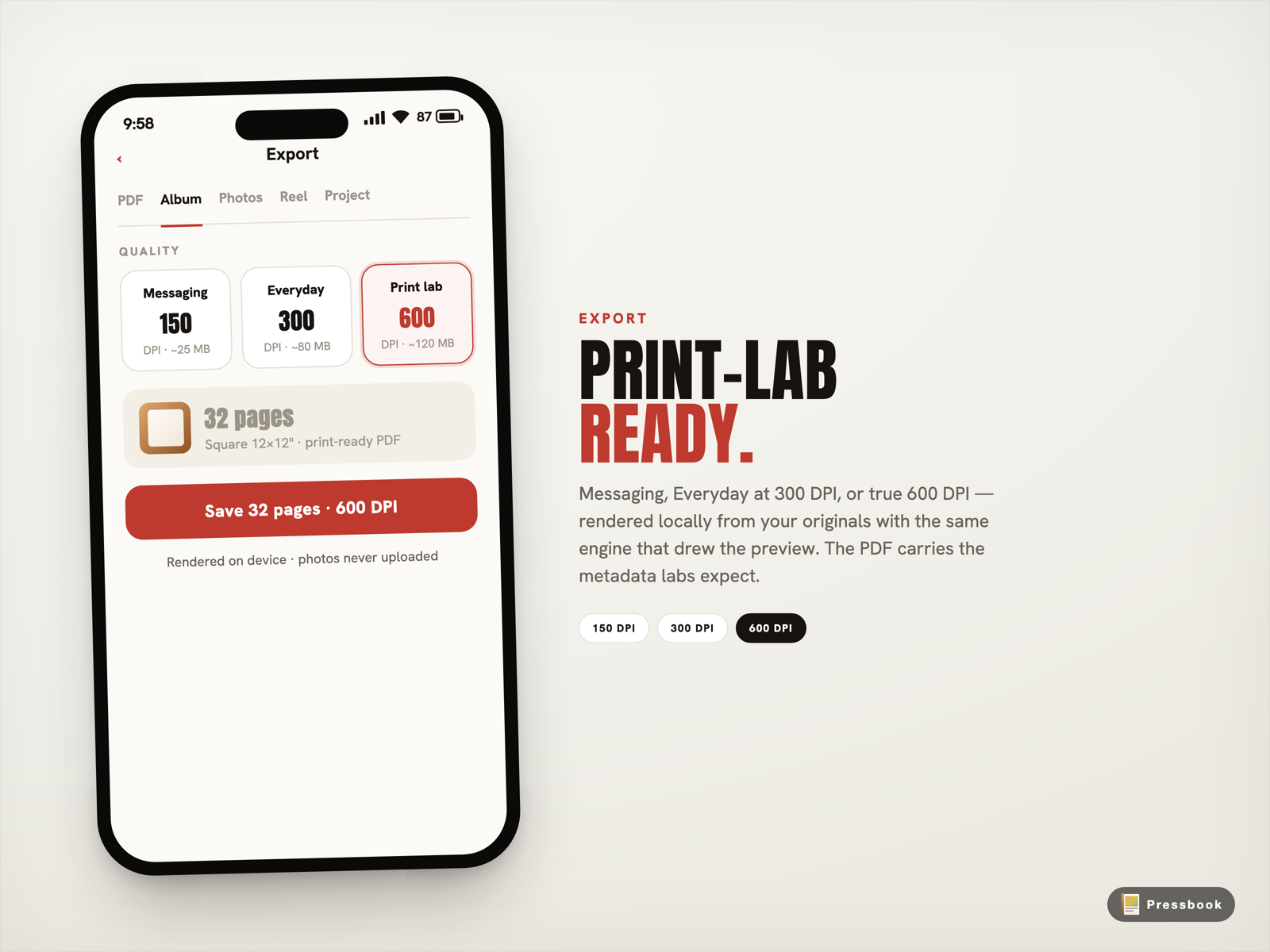
Tap the share button and you see three options. Free users get Messaging. Pro unlocks the rest.
- Messaging (150 DPI): Small files for iMessage or quick shares. Never send to a printer.
- Everyday (300 DPI): The industry baseline most consumer labs and drugstores accept. Good enough when the book will sit on a shelf and be viewed from normal distance.
- Print lab (600 DPI): Double the linear resolution of 300 DPI. Four times the pixel information per area. Skin pores, hair strands, fabric weave, small overlaid text, and fine patterns stay sharp after the lab’s own processing. Many pro labs specifically request higher-res files or appreciate the headroom for large prints and reprints.
The renderer scales your pages to the exact target DPI using the album’s real dimensions. The finished PDF carries the correct metadata. Labs receive a standard file they can drop straight into their workflow. No extra steps on your end.
300 DPI is what most people ship. 600 DPI is what you reach for when the prints matter and you want the pixels that actually hit the paper to come from your originals at maximum fidelity.
| Tier | DPI | Best for | Approx size (32-page square) | Pro required |
|---|---|---|---|---|
| Messaging | 150 | iMessage, quick previews | Very small | No |
| Everyday | 300 | Most consumer labs, shelf books | 70-90 MB | Yes |
| Print lab | 600 | Pro labs, large prints, fine detail | 180-320 MB | Yes |
Real file sizes and the safeguards that keep exports safe
The app estimates size live using the actual page count and format. A 32-page square album lands roughly here on most devices:
- Everyday (300 DPI): 70-90 MB
- Print lab (600 DPI): 180-320 MB
Larger albums or landscape spreads grow fast. A 60-page landscape at 600 DPI can reach 400 MB or more. The estimator is conservative and updates as you change quality.
Before rendering starts, the export runs a preflight against real free space (using the volume capacity APIs). It refuses early with a clear message instead of failing midway.
The write itself is atomic. The PDF is built to a final location only after the full render succeeds. Power loss, background expiration, or thermal throttle either gives you the complete file or cleans up and leaves nothing behind. No partial or corrupt PDFs.
Step-by-step: export the 600 DPI PDF
-
Finish your layout. Use the reader or full preview so every spread looks complete.
-
Tap the share icon in the toolbar.
-
In the export sheet choose the PDF · Album tab. This produces the single multi-page document most labs want.
-
Tap the Print lab quality chip (600 DPI). The live size estimate updates immediately. If you are on Pro the watermark is already gone.
-
Check the format badge matches the size you chose at creation (Square, Landscape, or Portrait). The renderer uses those exact pixel dimensions scaled to 600 DPI.
-
Tap the big export button.
- A progress pill appears with page-by-page timing.
- Photos are prefetched in the background with bounded memory use.
- Caches warm for overlays and watermarks.
- A Live Activity starts on the Lock Screen and Dynamic Island so you can lock the phone and walk away.
- If the device gets critically warm the renderer applies graduated backoff and shows a brief notice. It resumes when the phone cools.
- When complete the sheet offers:
- Save to Files
- AirDrop to Mac
- Direct share into a lab’s app or email
- Option to export individual high-res JPEG pages instead
You now have a clean, standard PDF with correct DPI metadata. Drop it into any professional lab workflow that accepts PDFs.
What actually runs on your phone
Everything stays local. Curation, layout, and the final render all use your original photos on the device. The export path calls the same page renderer as the live preview, only at the full target pixel size for the chosen DPI.
Behind the sheet:
- A background prefetch driver loads photos ahead of the render thread with a small ahead limit so memory stays bounded even on a 600 DPI 50-page album.
- Thermal state is checked on every page. Critical heat triggers graduated pauses (200 ms then 400 ms then 800 ms) and a one-line notice so you know why it slowed.
- Background task protection keeps the render alive for a short window after you switch apps or lock the screen.
- The final write is atomic. Success or clean failure. No half files.
Result:
- Works completely offline.
- Originals never leave the phone until you choose to share the finished PDF.
- No cloud round-trip re-compression.
- The .pressbook project file stays with you. Reopen it weeks later, change one photo, and re-export the full 600 DPI PDF in minutes.
Lab tips that actually matter
Call or check the lab’s upload specs before the final export. A few still want a small bleed or PDF/X-1a. Do that prep on a Mac after you have the clean 600 DPI PDF from Pressbook.
Proof critical spreads at 100% on a calibrated screen. Phone displays hide subtle color and sharpness issues.
For anything over 30 pages, export the first 4-6 pages as a test PDF first. Order one sample print. The cost is low and it removes all doubt.
Keep the original .pressbook project. When the lab asks for a two-millimeter shift on page 17, open the file, move the photo, and re-export the full high-res PDF in a few minutes. No need to rebuild from scratch.
When 300 DPI is fine and when 600 DPI is worth it
Use Everyday (300 DPI) for:
- Most consumer print services and drugstore labs
- Books that live on a shelf and get viewed at arm’s length
- Tight storage or tight deadlines
Choose Print lab (600 DPI) for:
- Labs that explicitly ask for higher resolution files
- Large-format or fine-art prints
- Work where skin, texture, or small text carries weight
- Projects you may reprint or enlarge later
The real difference
Cloud services make the first step easy. Then your photos leave the device, get re-encoded on upload, processed again on their servers, and arrive at the printer one more generation removed. The result is often a book that looks acceptable from ten feet but loses the life when you open it.
With Pressbook the pixels in the PDF are the pixels from your camera roll, rendered at the DPI you chose, written locally. Nothing touches them until you decide to send the finished file. That is the control that produces prints people actually keep on the shelf.
Ready to ship a real book?
Download Pressbook and export a small test album at Print lab quality. You will have the PDF in your Files app before most cloud uploads even finish.
Want the basics first? Read How to Make Your First Pressbook Album.
Want the side-by-side proof on actual printed pages? Read 300 DPI vs 600 DPI Photo Books: What Print Labs Actually Need.
Curious why we built everything on-device with zero uploads? See Why We Built SideSwipe Labs.